Permission Control
In the MAIN MENU training units (Ex: uMenu_BASICIS) we can now use the function:
rc_BuildMenuItemPermission( '', '<AIED>' );
See the example to add the customer registration item in the old and new way:
New way:( from version 5.0 )
rc_BuildMenuItemPermission( '', '<AIED>' );
The purpose of creating the function above was to facilitate, but both ways are valid.
Right after adding an item to the MENU, you configure its respective permissions:
rc_BuildMenuItem( '', 0, 'Clients tbl:clientes' );
//permissions
rc_BuildMenuItemPermission( '', '<AIED>' );
rc_BuildMenuItemPermission( '', 'Licence Tab' );
In the USUARIOS_RESTRICOES table there must be a field to receive the permission parameters of each added option. When the "restriction field" is informed and it does not exist, it will be created.
Let's see how it works:
In the example above:
rc_BuildMenuItem( '', 0, 'Clientes tbl:clientes' );
we haven't set the "pRestrictionField" parameter, RadCORE then assumes that the permission control field is the table name or form name (whichever has been set, but, as a priority, the table name.
In our example, the second parameter ( 'customers' ), is the name of the table linked to this menu option, so you must create a field in the USUARIOS_RESTRICOES table following the model:
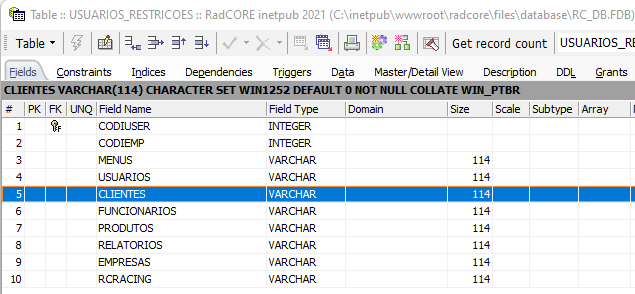
In the first permission line, using the parameter '<AIED>', the 4 standard items of the new modality will be created:
Acess
Insert
Edit
Delete
In the second line, we add a specific permission ('License Tab'), which is normal, since each form in our applications can have "n" permission options.
Each element added to the rc_BuildMenuItemPermission function has a sequence number to be used in conjunction with the rc_PermissionVerify function.
This function is who will control whether or not to allow access to each defined item.
In the example above, an inherited record with the options "AIED" will have the following sequence:

Let´s see frmBaseCRUD :
The dm_rc.rc_PermissionVerify function is responsible for controlling access to all screens and/or resources that require permission verification.
As seen above, the default permissions ("AEID") have a sequence from 1 to 4.
Sintax:
DM_RC.rc_PermissionVerify ('screen name / resource criticized', 'table', position_permission_string)

Each button will have a call to the rc_PermissionVerify function.
Let's see the example mentioned above, in the customer register.

In this example, access to the "license tab" in the customer registry receives the sequence 5 because it's the first customized option after the default list.
Let's review the example instructions to better understand:
rc_BuildMenuItem( '', 0, 'Clientes tbl:clientes' );
//permissions
rc_BuildMenuItemPermission( '', '<AIED>' ); in this first line we have 1 to 4
rc_BuildMenuItemPermission( '', 'Licence Tab' ); so this second item is sequence number 5 in the permissions list
Through these examples you can add and control access to any item in your application.
REFERENCE MENU
We have the following menu groups: BASIC, MOVEMENT, OTHER, REPORTS, TOOLS.
rc_BuildMenuItem( '', 0, 'Clients tbl:clients' );
//permissions
rc_BuildMenuItemPermission( '', '<AIED>' );
The first parameter of both functions indicates the menu group. In the example above, it was left blank ( '' ), so it assumes the "BASIC" group, which is also referenced with the letter "B".
rc_BuildMenuItem( 'M', 0, Purchases tbl:purchases' );
//permissions
rc_BuildMenuItemPermission( '', '<AIED>' );
In "rc_BuildMenuItemPermission" you could use "M" since "rc_BuildMenuItem" was defined as "M".
The above configuration is allowed from version 8.4.0.3 onwards.
Created with the Personal Edition of HelpNDoc: News and information about help authoring tools and software