STANDALONE
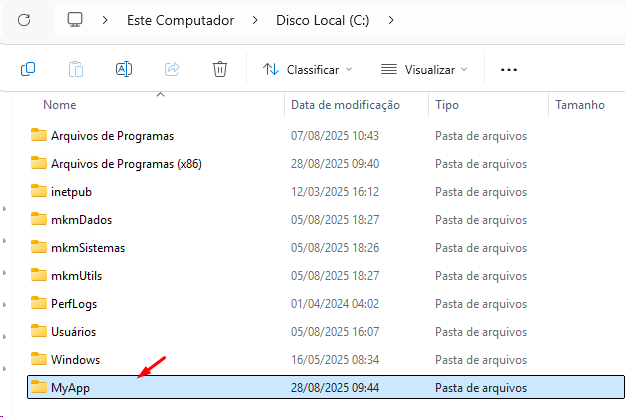
Create your application folder:
In your application's development folder, select the files and folders indicated below:
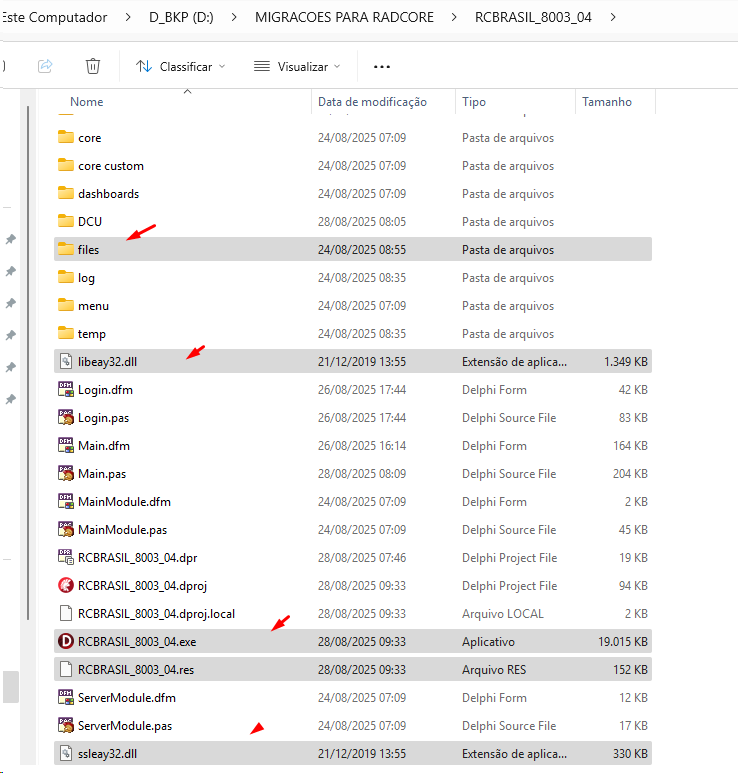
In the example, the application is called RCBRASIL_8003_04.exe. Select your application files.
To make uploading easier, compress the files:
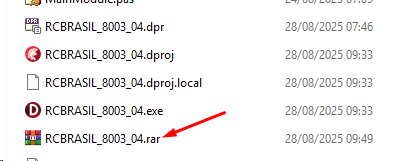
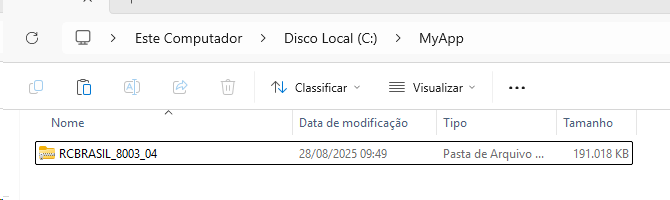
Now select the compressed file and send it to your VPS as you prefer. I'll just press CTRL + C and on the VPS, CTRL + V.
Then unzip the file:
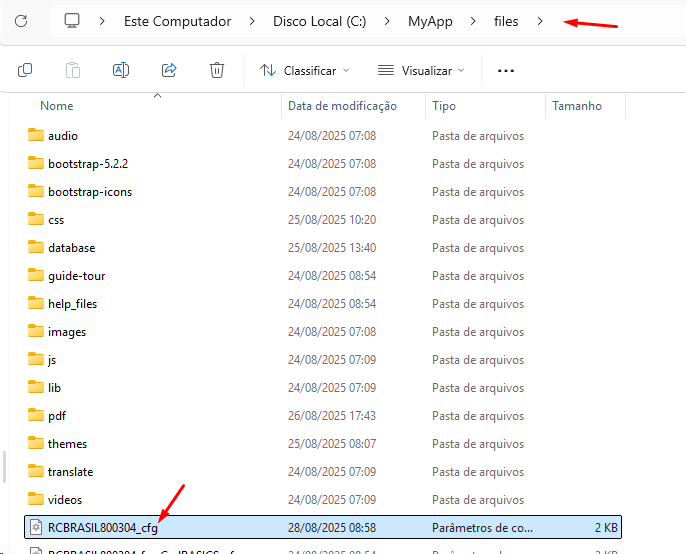
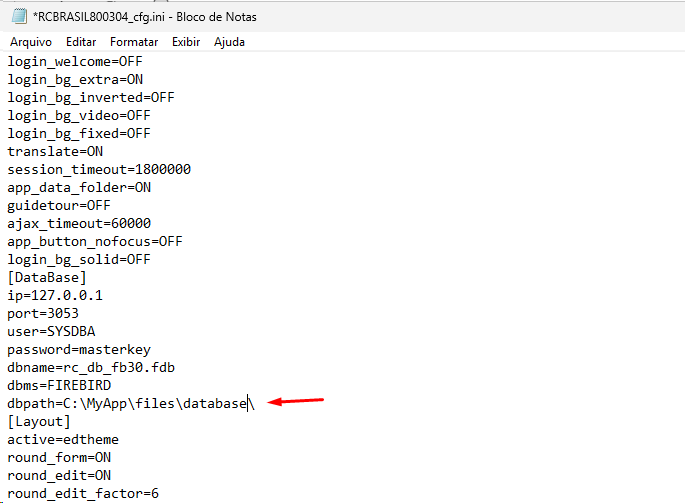
Since we have an application with a FIREBIRD database, we need to adjust the database path:
Installing the Database Manager
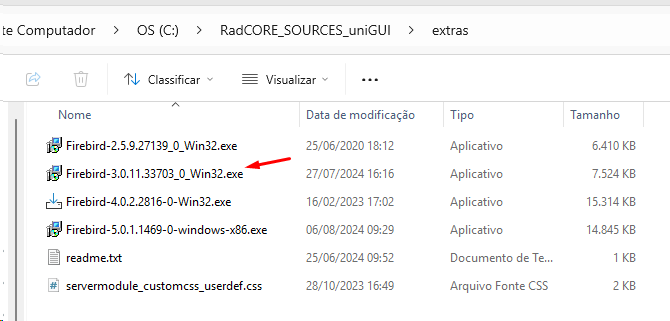
I'm using FIREBIRD 3.0 32-bit, so let's copy the installer to the VPS:
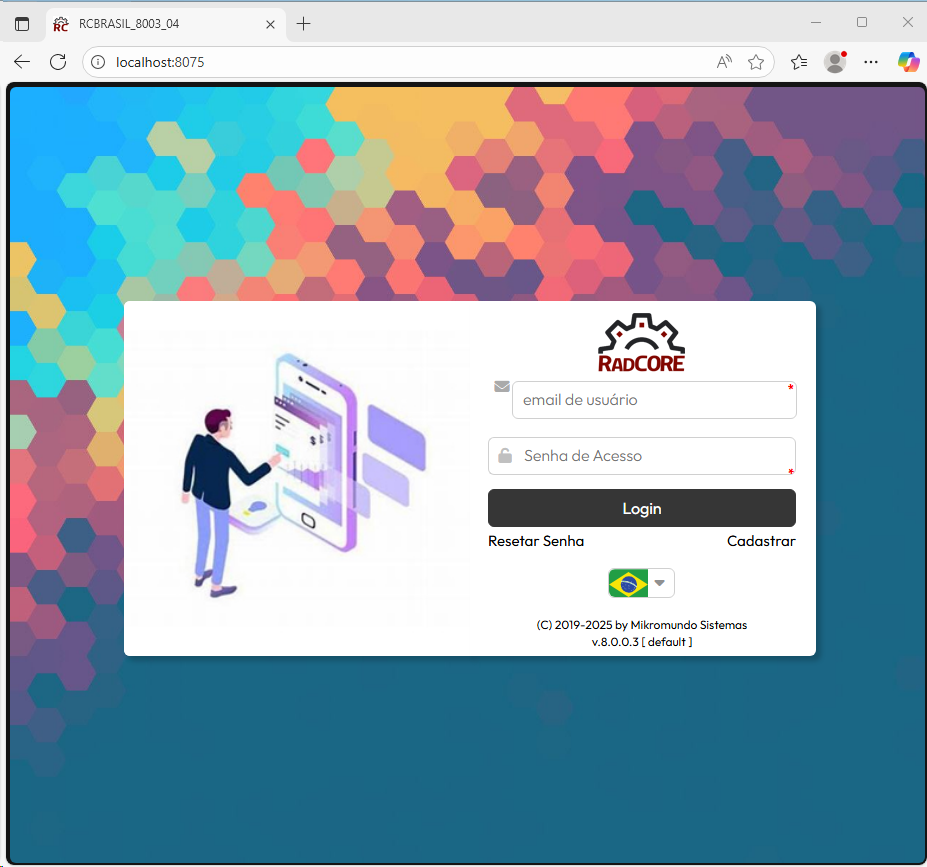
If everything has been done correctly up to this point, your application will already be running on your VPS:
Now let's access it from outside the VPS.
First, add a new inbound rule to the Windows firewall to allow your application's port—in this case, 8075.
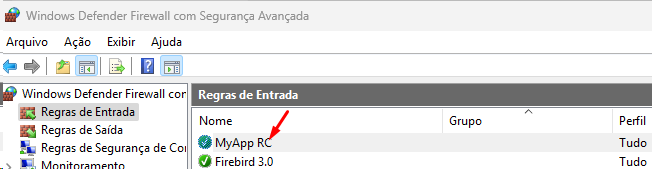
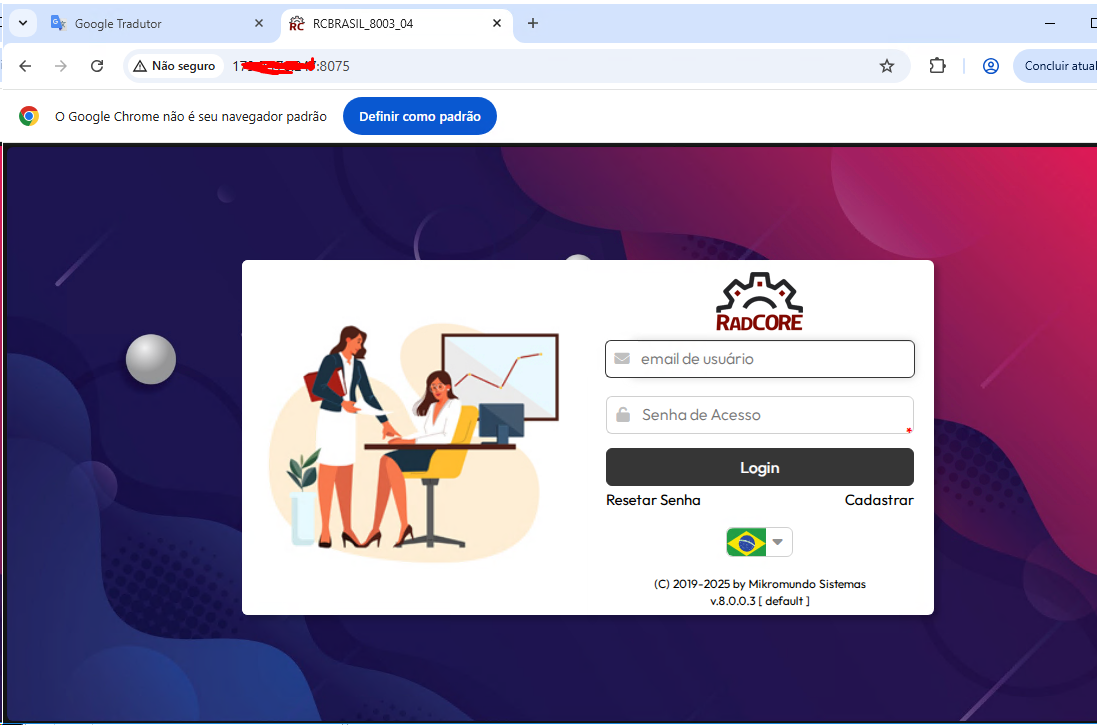
Done...now open the browser on any computer and type the IP of your VPS followed by the port:
Created with the Personal Edition of HelpNDoc: News and information about help authoring tools and software