Field List
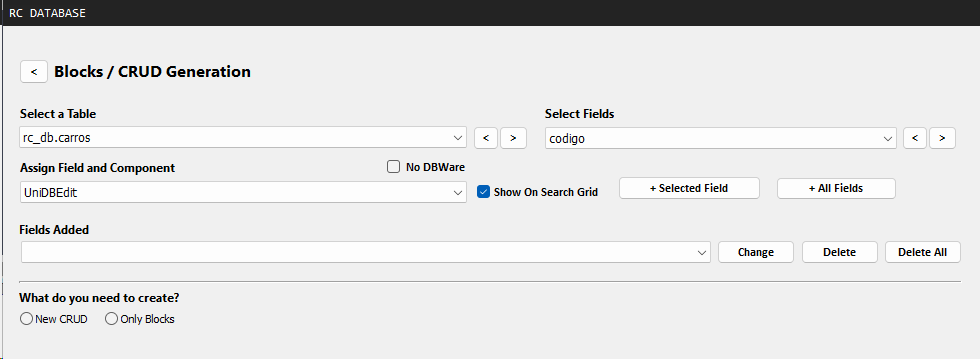
Select a table
Under "Select a Table," the tables in your database will be listed.
Select a field
When you select a table, the field list will be updated in "Select Fields."
Now, select the field you want to add to the list of fields that will be generated.
Type of Component to be Generated
Note that for each field selected, under "Assign Field and Component," the type of component that will be associated with this field will be displayed, and you can change it if you wish.
DBWARE Components?
By default, DBWARE components will be created, but simply select "No DBWare" and select the field again to switch to simple components.
Standard Search
By default, "Show On Search Grid" is checked, indicating that the field will be displayed in the search grid of the default RadCORE CRUD that will be generated.
Uncheck if you don't want a specific field to be displayed in the grid.
Adding a field to the list
Click "+ Selected Field" to add only the selected field or "+ All fields" to add all fields in your table.
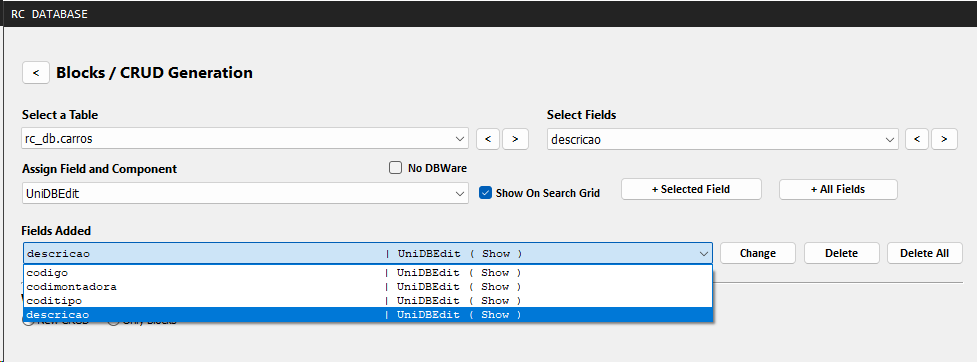
Added Fields
Under "Fields Added," you can review the fields selected so far and edit or remove them.
Created with the Personal Edition of HelpNDoc: News and information about help authoring tools and software