Clone
CLONE
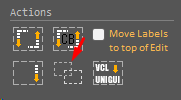
Sometimes we can create groups of components and we need to duplicate to reuse what was done.
CLONE will do this for you and you can also do this between different forms or even between different DELPHI instances.
Let's use the previous example:
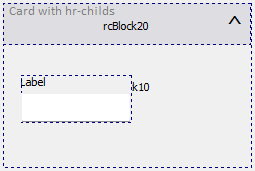
Select all content and press CTRL + C.
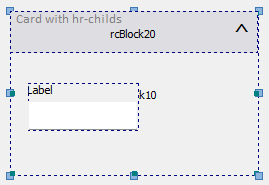
Now you can click where you want to do the cloning which can be:
- Within the same form;
- In another form in the same project;
- In another form within another instance of DELPHI.
After clicking where you want to clone, launch RC ELEMENTS.
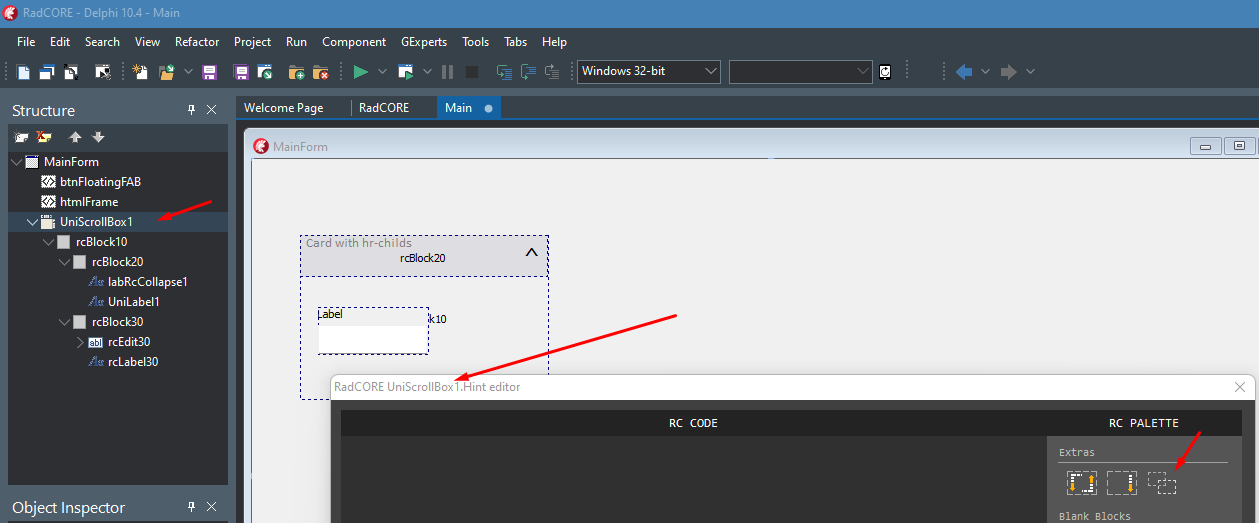
Click the CLONE button and click OK ( or F5 ).
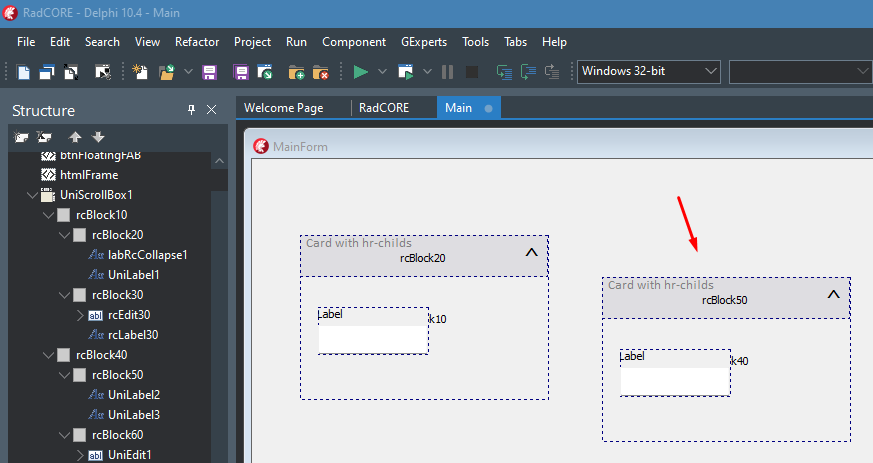
Notice that even the "collapse:rcBlock10" attribute of the source block has been adjusted to point to the new block created.
DETERMINING THE CLONE BLOCK / INTERVAL
Imagine you have several blocks in the form, and you want to clone one or more of them, but you want the sequence to be customized.
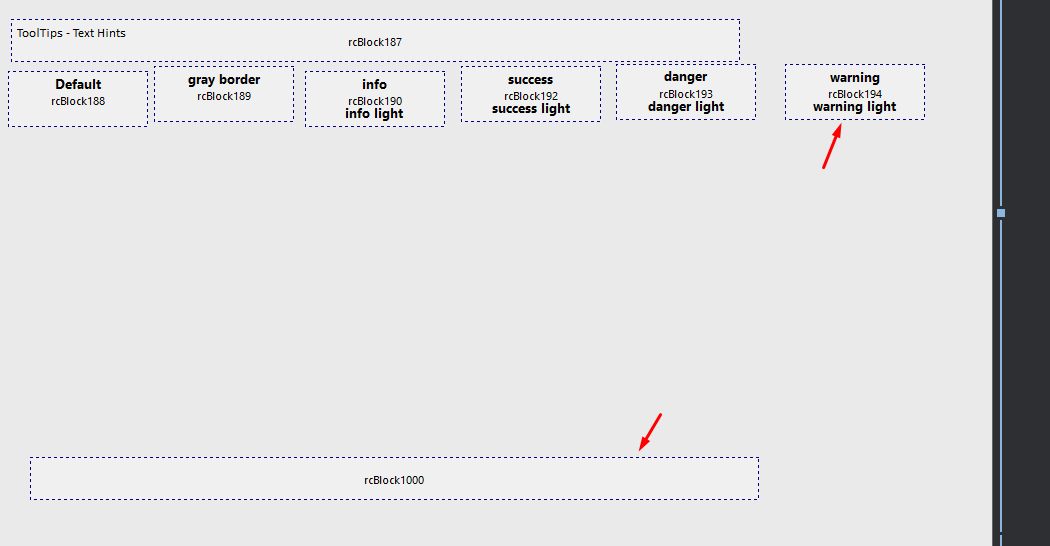
By default, cloning or any creation of blocks with RC ELEMENTs will follow the sequence from the last block in the form.
In the example above, this would be from block 1000.
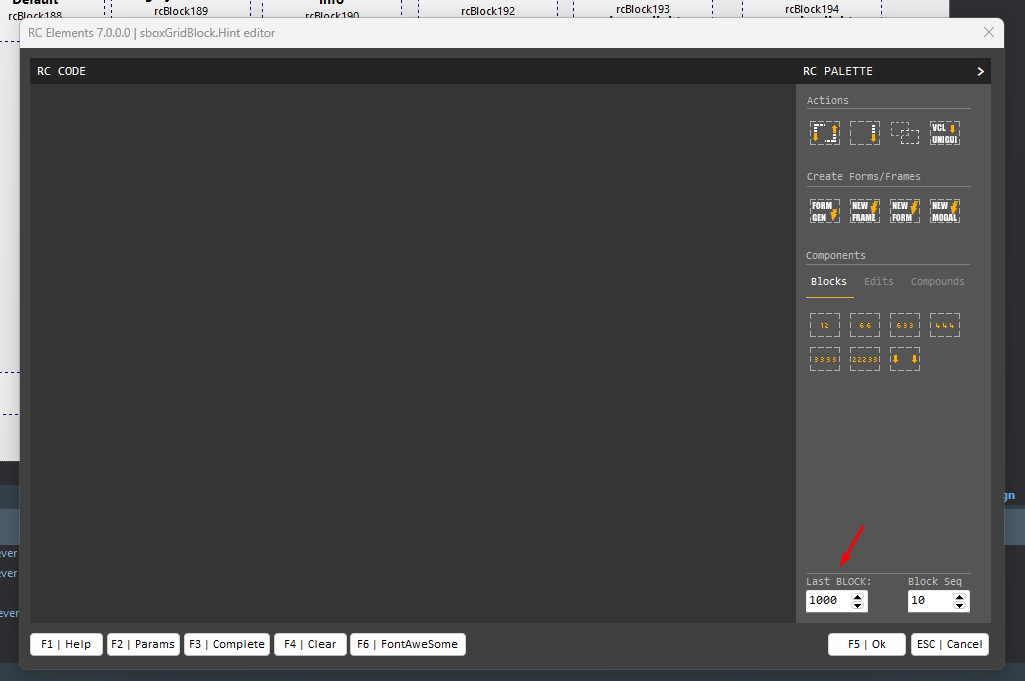
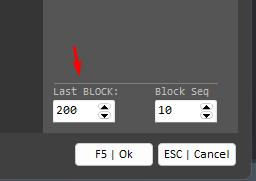
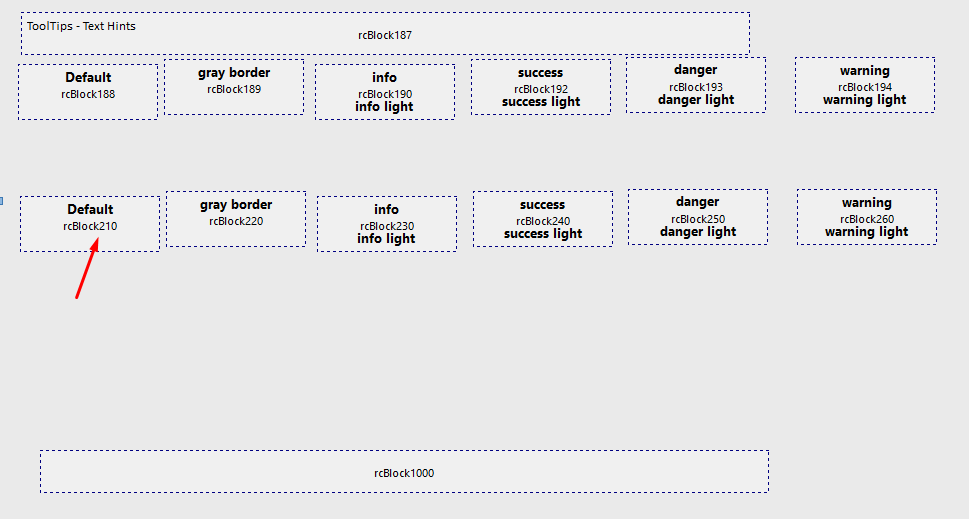
I want to clone blocks 188 to 194 but I want the sequence to start from 200 with intervals of 10 in 10.
Select the blocks, activate RC ELEMENTs, adjust and then run the cloning:
IMPORTANT
If, after cloning several objects, a block/component is not in its original order, it's because "the initial creation order" of these blocks/components was just like that.
A simple solution to this is to simply hit CTRL X (remove) and CRTL V (paste) on the block/component before using the "clone" or select (by holding down "shift") each block you want to clone in sequence.
Created with the Personal Edition of HelpNDoc: Create iPhone web-based documentation